It is truly the year of the Linux desktop; LLMs have made troubleshooting Linux
a breeze, DHH has brought the common man beautiful Linux with Omarchy, and
popular content creators such as PewDiePie, ThePrimeagen, and Linus Tech Tips have
made the case for an operating system you control whether for fun or
practicality. Furthermore, the Asahi project has come leaps and bounds such
that you can daily drive Linux on your Apple Silicon Mac.
But not everyone can make the switch. Many of us require Mac OS despite its
many flaws, whether that is for security, because it is your work laptop and
you are required to use Mac or Windows, or because there is certain software
that is not available or optimal on Linux. I for one develop for the iPhone and
need Mac OS to build.
Certain aspects of Mac OS are horrible. The most egregious to
me is the operating system attempting to prevent you from running software
that Apple has not approved of. Unfortunately, I have no solution for this,
for now it is inescapable.
But other aspects are subvertible. I believe it is a common misconception that
the operating system is not appropriate for keyboard centric power users.
Actually, with a great deal of effort, and thanks to advances in FOSS software
such as Aerospace, one can use Mac OS much like The Primeagen uses Arch, or how
Omarchy ships with hotkey desktop switching.
This blog post is a record of my developer workflow on Mac in 2026. I hope it
proves useful to those who are looking to make Mac OS their own, inspired by
the developments in the Linux community. It is the result of a large amount of
trial and error, particularly in finding optimal key bindings in order to
retain the Mac system keybindings (for copy and pasting, opening browser tabs
etc.), allow for i3-like desktop switching, and doing so with optimal
ergonomics by not contorting the hand while limited to the magic keyboard.
Elements I present in this workflow include:
Optimal ergonomic keybindings
FOSS software for Primeagen-like / i3-like / Omarchy-like desktop and program
switching
Workflow for managing code editors with aerospace / tmux / vim.
Certain other software that I use and think is excellent
It is:
Pragmatic: uses system defaults wherever possible. Tries to be as simple as
possible. Is designed for normal Mac use in addition to the terminal e.g. you
probably need to use a web browser, maybe the Mac mail client, and Zotero for
managing your research. There is no assumption that everything you do must be
an edgy CLI. The aim is to retain the benefits of normal Mac OS. Keybindings
are consistent between programs where possible e.g. using Vim keybindings
wherever appropriate.
Powerful: customises the defaults for an efficiency pay-off. Learning this
workflow will take some time, but will pay back by saving you time in the
long run as you zip around your operating system. It's up to you whether the
initial investment is worth it.
The workflow is heavily inspired by The Primeagen, favouring dedicated desktops
and everything available with keyboard shortcuts where possible. Preferring
switching multiple programs on one monitor rather than having multiple monitors
with a program open on each etc.
This workflow is my own, and I do not present it as the optimal solution. I do
however, think it is excellent, simple, and with time will bring a power user
an extreme speed-up in navigating the operating system compared to the defaults.
I write this as I say goodbye to the Apple eco-system for now, moving from iOS
to Lineage, and Mac OS to Asahi full-time.
Keyboard remap
System rebinds
The CMD key was my biggest problem when moving from Windows and was something
I wanted to remedy immediately. Having the CMD key is quite a nice feature of
Mac OS in my opinion because things like CTRL-C to exit a terminal program
are separated from CMD+C to copy text at a system level. However, it also
presented a huge ergonomic problem for me as a home row touch typer, how on
earth do I contort my hand in order to hit CMD+[KEY] from resting with my
fingers on the home row? I still remember distinctly the day I first switched
from Windows to Mac being confounded by this issue and developing pain in my
thumb within days. I simply could not believe that most Mac users lived with
this, and did not find any consensus on how to overcome it. On Windows you have
one fewer modifier key, but the CTRL key is easily reachable with your pinky
finger. I guess one way around this is to use the right command key as much as
the left one, but this has some problems, for example it's really nice to be
able to use the trackpad to select text with your right hand, and simultaneously
copy and paste using shortcuts with your left hand. Doing so comfortably is not
possible for me using the defaults.
Fortunately, there is a completely spare key on the keyboard just waiting to be
rebound, in arguably the most ergonomic position anywhere on the keyboard for a
modifier key: caps lock.
Rebind: CAPS_LOCK -> CMD when *held*.
If you take only one thing from this workflow let it be this. This rebind alone
alleviated my thumb pain, sped me up, and made use of a completely unutilised
key (note we can separate what CAPS_LOCK does when pressed alone from what it
does when held down and used as a modifier e.g. pressing CAPS_LOCK could still
perform case change, and holdingCAPS_LOCK and pressing another key acts as
CMD). We will in fact rebind pressingCAPS_LOCK alone in a moment.
CAPS_LOCK is huge and just millimetres away from your pinky finger. Try
resting your pinky finger over the CAPS_LOCK key and then notice how every
single other key on the keyboard is instantly available without a stretch. You
can CMD+T, CMD+W, CMD+TAB your way around the system like a breeze.
But we will not stop there. This rebind is the gateway drug from which we will
go on an optimisation spree.
The next system rebind I will argue for is to make typing faster by addressing
system wide text editing and text navigation. One of the best pieces of advice
I have heard for increasing your typing speed is to avoid pressing the
backspace key more than once. Imagine you try to type the word dexterity but
you type dxterity. You have a few options:
Hit the backspace key 7 times then retype the word.
Hit the left arrow 7 times and insert e.
Move to the start of the previous word, then move right once, then insert e.
Delete the entire previous word and retype it.
My preference is strongly for option 4. maybe option 3 and never the other two.
It's much faster to delete an entire word and retype it than to carefully count
the number of keypresses in order to correct it. But how can we delete the
previous word on Mac OS? And how could we move the cursor between words? Well
again on Windows the defaults are more ergonomic because CTRL+backspace
deletes a word, and CTRL+arrows navigates between words. On Mac the default
is option and again I find option+backspace difficult if I use my pinky and
uncomfortable if I bend my thumb. On Mac CMD+backspace/option deletes an
entire line or moves to the start or end of a line.
Fortunately CAPS_LOCK's untapped potential can be exploited again using the
following rebind:
Swap CMD and option when held with arrows or backspace
This solves word navigation and deletion because CAPS_LOCK is performing CMD,
so this swap makes CAPS_LOCK+backspace delete the previous word,
CAPS_LOCK+arrows navigates between words, CAPS_LOCK+SHIFT+arrows selects
text, and function + CAPS_LOCK + backspace deletes the next word.
If we want to delete whole lines or navigate to the start of a line we can do
that with option, but I do not do this nearly as often.
With less preamble here are a few more rebinds (note that I use
Karabiner-Elements for all of these
rebinds, and I have included my full karabiner file so if you have any questions I'd
start by reading that or pasting it into an LLM)
Rebind: RETURN -> CTRL when held
I like to have two CTRL modifiers available, one for my left and one for my
right hand. I hit CTRL+C and CTRL+B a lot (in tmux) so having a CTRL
modifier for my right hand is more comfortable. I have this setup so pressing
return alone still works normally.
One catch worth knowing about: this rebind has to ignore CMD. Because
CAPS_LOCK is now performing CMD, a naive RETURN -> CTRL rebind will
swallow CMD+RETURN, which plenty of apps use to send.
Another one for my vimmers
Rebind: CAPS_LOCK -> ESCAPE when pressed
This one makes leaving insert mode in vim fast. It also means we are free to rebind the escape key:
Rebind ESCAPE -> switch desktop when pressed
If we actually want to perform CAPS_LOCK then I use:
Rebind shift + shift -> CAPS_LOCK
I do this rarely but it is useful from time to time.
We will introduce desktops in a moment but for now I'll just say that switching
between them with the escape key is fast, it's easy to hit, and even though
it's a bit of a stretch, that's okay because you don't do it mid-sentence / as
part of a vim command sequence. There's something quite satisfying about
punching escape to snap between desktops.
Aerospace
Aerospace is a FOSS i3-like window manager for Mac OS. It is fully configured
with dotfiles, and can do most of what I want from a window manager. My
workflow is to have numbered workspaces for projects and lettered workspaces for
singleton programs. The whole thing relies on two keybinds:
Keybind: CMD + [key] to switch to a desktop associated with [key]
Keybind: CMD + shift + [key] to send a program to desktop associated with [key]
Note:
CMD is my Aerospace leader key
We got rid of all of the other uses of the left and right CMD keys so they are
now free to be rebound for this purpose.
I have a desktop called browser that's where my browser lives, and I can hit
CMD+b to switch to that desktop. I always have a terminal open on a desktop
called terminal and likewise I can switch to that with CMD+t. My projects
vary from day to day. If I am working on a data science project and want to
have a browser open to view a code notebook in a split view with the code on
the left, then I can switch to browser with CMD+b then open a new window
with CMD+n then send that new window to desktop 1 with CMD+shift+1. I can
then switch to the terminal with CMD+t, open a new terminal window with
CMD+n and then send that to project 1 with CMD+shift+1. This sounds
complicated but you quite quickly get the hang of it, and I generally do not
find myself opening and closing programs that often, I will set up a project
desktop and more or less keep them there until I restart the laptop. There are
ways to make aerospace automatically start and assign programs but I had some
problems with a very slow system start and some flakiness. Aerospace will
auto-snap my windows to be full screen or split pane if I hit CMD+f to toggle
between floating and tiling mode.
I have three different keys for switching between the current desktop and the
most recent other desktop: pressing escape, or pressing either CMD key.
The redundancy is there because I had no other use for pressing the CMD key
and sometimes it's nice e.g. if you hit CMD+[key] to change desktop but
regret it you can always go back by hitting CMD.
There are some things I have not ironed out with this setup, the biggest is
that I cannot get program focus switching to work. I really want to be able to
hit CMD+arrows to focus programs within a desktop but this did not work for
me initially and I have since created other habits, it may already be fixed in
an update.
Here is my full aerospace config:
# https://nikitabobko.github.io/AeroSpace/guide#default-config

start-at-login = true

[mode.main.binding]
# Switch workspace with ctrl+alt+number
ctrl-alt-1 = "workspace 1"
ctrl-alt-2 = "workspace 2"
ctrl-alt-3 = "workspace 3"
ctrl-alt-4 = "workspace 4"
ctrl-alt-5 = "workspace 5"
ctrl-alt-6 = "workspace 6"
ctrl-alt-7 = "workspace 7"
ctrl-alt-8 = "workspace 8"
ctrl-alt-9 = "workspace 9"
ctrl-alt-0 = "workspace 0"

# Move workspace with ctrl+alt+shift+number
ctrl-alt-shift-1 = "move-node-to-workspace 1"
ctrl-alt-shift-2 = "move-node-to-workspace 2"
ctrl-alt-shift-3 = "move-node-to-workspace 3"
ctrl-alt-shift-4 = "move-node-to-workspace 4"
ctrl-alt-shift-5 = "move-node-to-workspace 5"
ctrl-alt-shift-6 = "move-node-to-workspace 6"
ctrl-alt-shift-7 = "move-node-to-workspace 7"
ctrl-alt-shift-8 = "move-node-to-workspace 8"
ctrl-alt-shift-9 = "move-node-to-workspace 9"
ctrl-alt-shift-0 = "move-node-to-workspace 0"

# Switch to app-specific workspace.
ctrl-alt-a = "workspace ai" # e.g. Claude or a browser with an AI site open
ctrl-alt-b = "workspace browser"
ctrl-alt-c = "workspace calendar"
ctrl-alt-g = "workspace google"
ctrl-alt-m = "workspace mail"
ctrl-alt-o = "workspace obsidian"
ctrl-alt-p = "workspace pdf-reader" # these days I just use my browser as a pdf reader
ctrl-alt-r = "workspace repitition(anki)"
ctrl-alt-s = "workspace spotify"
ctrl-alt-t = "workspace terminal"
ctrl-alt-w = "workspace whatsapp"
ctrl-alt-z = "workspace zotero"

# Move app to app-specific workspace.
ctrl-alt-shift-a = "move-node-to-workspace ai"
ctrl-alt-shift-b = "move-node-to-workspace browser"
ctrl-alt-shift-c = "move-node-to-workspace calendar"
ctrl-alt-shift-g = "move-node-to-workspace google" # Google account sandboxed browser
ctrl-alt-shift-m = "move-node-to-workspace mail"
ctrl-alt-shift-o = "move-node-to-workspace obsidian"
ctrl-alt-shift-p = "move-node-to-workspace pdf-reader"
ctrl-alt-shift-r = "move-node-to-workspace repitition(anki)"
ctrl-alt-shift-s = "move-node-to-workspace spotify"
ctrl-alt-shift-t = "move-node-to-workspace terminal"
ctrl-alt-shift-w = "move-node-to-workspace whatsapp"
ctrl-alt-shift-z = "move-node-to-workspace zotero"

# Focus finder (e for file explorer)
ctrl-alt-e = "exec-and-forget open -a Finder"

# Move focus between windows.
# This isn't working :( using hjkl works but not for ghostty which eats those keys.
ctrl-alt-left = 'focus left'
ctrl-alt-down = 'focus down'
ctrl-alt-up = 'focus up'
ctrl-alt-right = 'focus right'

alt-tab = "workspace-back-and-forth"

# Toggle floating window.
ctrl-alt-f = "layout floating tiling"


# Workaround: Ghostty must be started in tiling mode in order to not experience
# bug whereby opening a terminal tab makes aerospace think you've opened a new window.
[[on-window-detected]]
if.app-id = "com.mitchellh.ghostty"
run = ["layout floating"]

# Floating by default.
[[on-window-detected]]
check-further-callbacks = true
run = 'layout floating'
Tmux, code editors, AI
Sometimes I code and interact with Claude Code on my terminal desktop and
switch between this and say, a web app which would be running on the browser
desktop. Or if I am purely in the terminal then I could do all that on
terminal. Other things have their own desktop. Regardless I almost always
use a custom command aliased tmuxd which starts tmux in the
current directory and creates 4 tabs with vim opened in the first, command
line in the second and claude code in the third. These are numbered 1-4 so
I can easily switch to them with CTRL-b + [number] or switch between a
pair of them with CTRL + ;, or cycle through them with vim style motions:
CTRL+l to move up a number, CTRL+h to move down a number.
Tips:
Create a config folder where you symlink all of your dotfiles inc. karabiner, aerospace etc. and use git to track changes.
Use LLMs to remember keybindings whether the defaults or your own ones.
If you notice an inefficient part of the system, see if there is a keybinding for this, consider registering your own custom keybinding.
Keybindings are everywhere, often they are vim-like e.g. hit CMD+L to focus the URL bar in Helium/Chromium/Google Chrome then CTRL+N CTRL+P to move up and down the suggestions.
I might come back to this and expand on it another day, now onto Asahi!
I've launched a couple of small web apps recently.
mailmelater.net lets you schedule an email reminder to yourself for any future date. I built it because I wanted to remember to cancel a subscription and I'm currently between calendar apps, trying to de-Apple and move to something self-hosted and open source. There are plenty of sites that already do this but I trust mine more. I tried to make it look professional and trustworthy, and built it on durable infra (I think lol).
Overnight Temperature Atlas USA is a map of average overnight minimum temperatures across US climate divisions, broken down by month, using NOAA data. I'm planning a short road trip in America and wanted to figure out whether it's warm enough anywhere to sleep in my car.
Extremely good EVF, similar to that in the X-T1 but smaller, large for a compact camera
Film simulations (but requires fiddling compared to later cameras)
Range-focussing guide
I paid £400 for used with 6-month warranty in 2025, good condition
Popup flash
Review
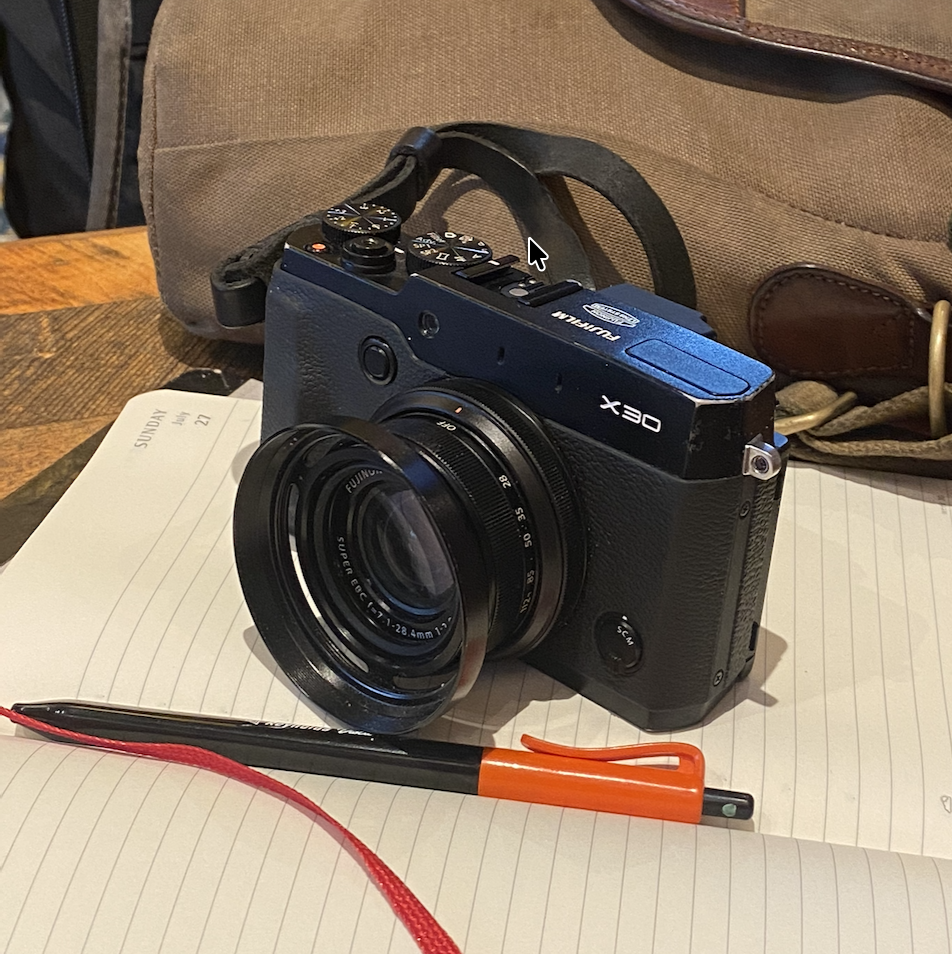
The Fujifilm X30 is an excellent compact camera that's been my trusty travel camera on multiple trips around the world. It has a unique vintage-futuristic look, and a 'metal where it matters' construction that makes it satisfying to handle. Its bright variable lens makes it extremely versatile, and it packs an entire shooting setup in a camera that fits in my small camera bag with plenty of room left for my kindle.
The sensor is approximately the size of a modern smartphone and is the camera's biggest quirk. With custom film simulations from Fuji X Weekly, I consistently get pleasing muted filmic shots that look good printed postcard-sized. However, the sensor struggles in low light and has low dynamic range; thus getting a good shot requires working with the light, keeping an eye on your settings (or embracing auto mode), or using flash.
The camera's EVF is exceptional for a camera of its size and age, and is almost exclusively how I shoot. With the LCD disabled, the battery life is pretty good. That said, when I'm out shooting I switch the camera off if I haven't shot for a few minutes. The camera turns on and off by manually zooming the lens. This quirk is an exceptionally well-thought-out design choice — it means there's no flimsy electronic zoom motor that's slow and can break, and I always want to set the zoom when I turn the camera on anyway, so it's really intuitive. The camera also has all the settings you would want from an enthusiast/pro camera, including a range focusing guide.
I briefly owned a Ricoh GR III, which I replaced with this camera, and I'm much happier with the X30, though they're very different beasts. I don't think the X30 is for everyone, but if you want a good cheap(ish) enthusiast travel camera with film simulations, a pop-up flash, and you like the X30's sensor, then this is hard to beat.
Tips
Hold the preview button to view photos without switching on the camera.
I shoot RAW + jpeg in case the recipe gives a weird result, plus sometimes the RAW helps with dynamic range issues.
Switch to manual focus mode using the toggle on the front of the camera to range focus.
The photo transfer app on iPhone does work, but requires patience and repeatedly restarting the app, turning Wifi transfer off and on, etc., in order to connect. After finding the knack, I found I can do this in around 10 seconds, but it took some practice to figure out.
After a year of shooting with the X30 I've bought my second Fujifilm camera, the X-T2. It has an APS-C sensor that does much better in low light, significantly higher dynamic range, as well as a water resistant body which I can take outside on rainy English days. It's a relatively small camera but much larger than the X30, which will take some getting used to. The main reason I bought it is to shoot with a more capable sensor. It's often said that shooting with constraints improves your creativity, and I think that's probably true. However, I'm looking forward to increasing the amount of situations I can shoot in.
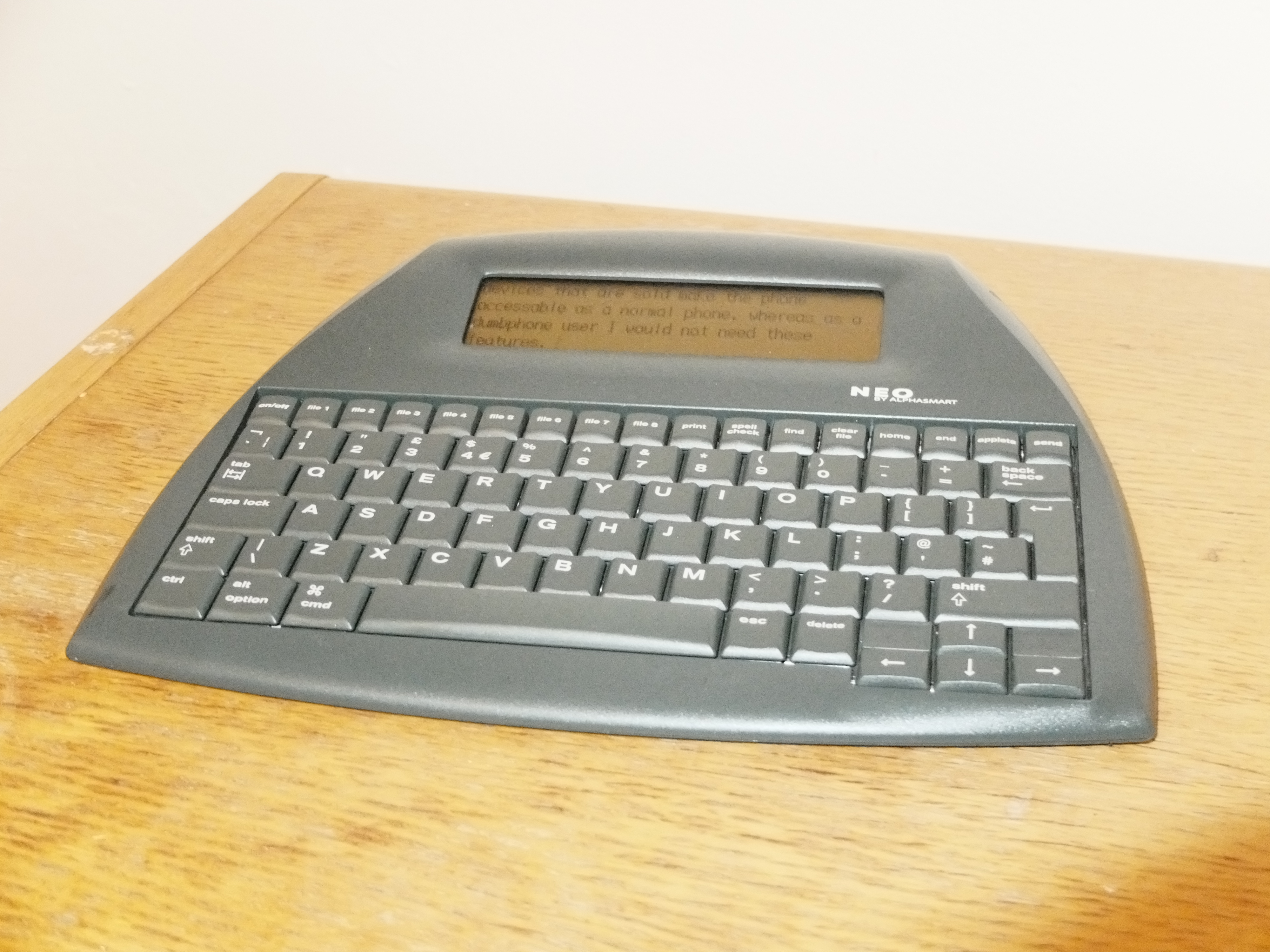
The AlphaSmart Neo is a digital typewriter that was manufactured between 2004 and 2013. Along with the Neo 2, it's the last in a line of products that started with the original AlphaSmart in 1993, with the aim to "deliver affordable, lightweight, rugged portable computing devices that are expandable, easy to use and manage, and provide exceptional battery life" for classrooms. Over three decades later, the Neo still delivers on that promise and offers something newly compelling for most users, myself included: a minimalist, distraction-free writing experience.
Specs:
33 MHz DragonBall VZ processor
2 MB of RAM
0 storage (all text saved to RAM, but can be exported to a computer via USB)
Battery lasts months depending on usage (~700 hours of use).
Requires _ x AA batteries and 1 x CR2032 battery (used to keep data in RAM when main batteries removed).
Up to 8 documents simultaneously, up to 50,000 words each.
The AlphaSmart has a full sized keyboard which is satisfying to type on, and even supports a few shortcuts for navigating between, selecting and deleting words and lines at a time.1 The device turns on almost instantly, can be locked with a password2 (though I suspect there's nothing preventing the files being accessed via usb), and the battery lasts for months - I haven't had to change batteries since I got it at the start of the year. It's features are minimal, providing nothing beyond writing txt files, and sending them to your computer.
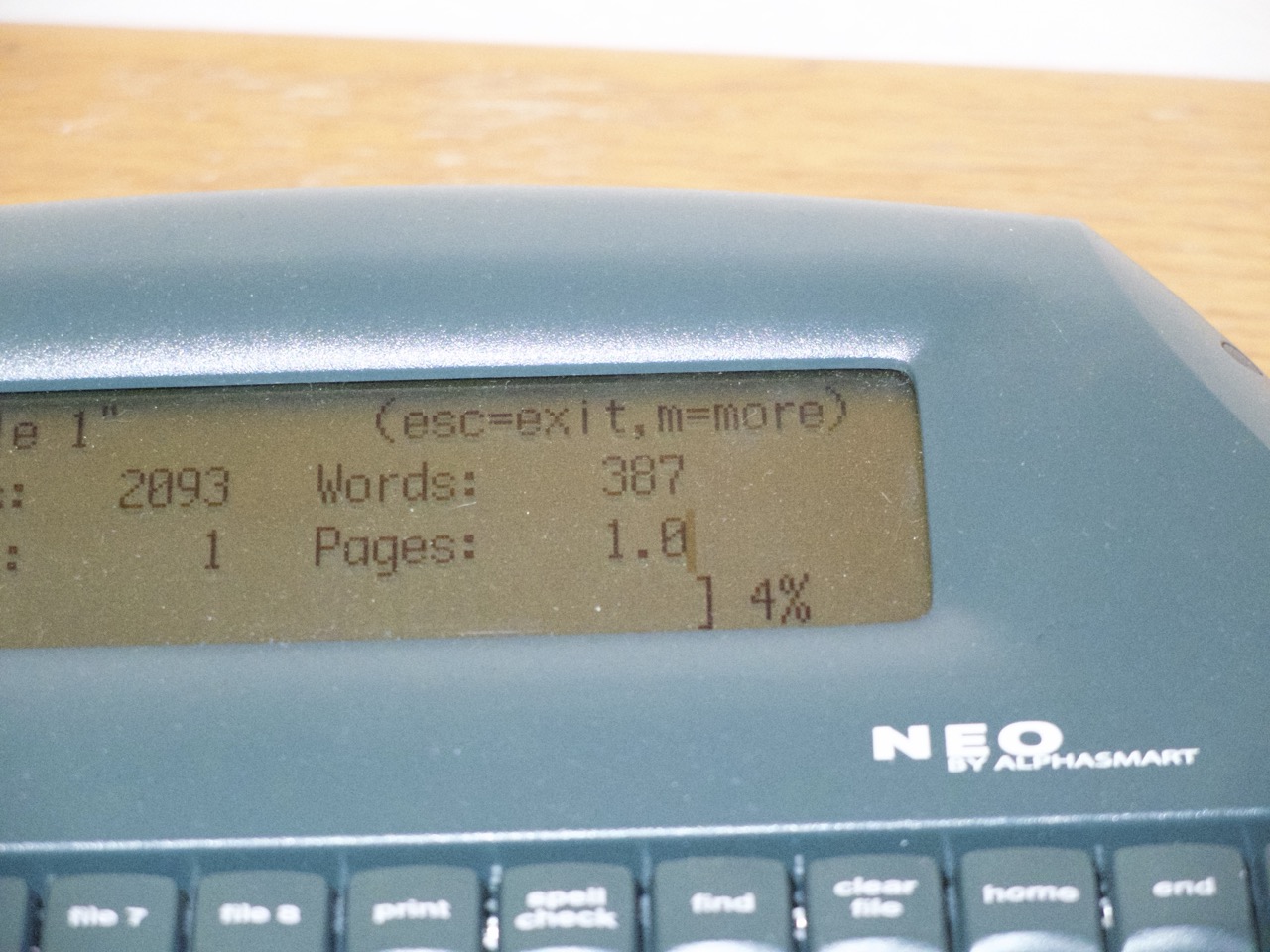
I've been using the AlphaSmart to write a daily journal. I've started the habit of beginning each day by brain dumping 750 words on it. In the past I've journaled on paper about what happened at the end of each day, partly with the intention of keeping a permanent record of my life. With the AlphaSmart I'm doing the opposite, I'm using it as a tool for self-reflection and try to focus on writing about how I'm feeling, with no intention of looking back on what I wrote. In fact, each morning when I write the next one I overwrite the previous file. I find that because I can type much faster on the Neo than I can write by hand, and because its sole focus is on output, I'm able to get into a kind of flow state where I get down whatever is on my mind. I've found it to be quite therapeutic and a good way to start the day, by becoming intentional about the day ahead. The screen is tiny but that's actually helpful in focussing on writing rather than editing your work, and while the functions are basic you can perform a word count (press CTRL + w) and spellcheck.
In addition to finding brain dump journaling cathartic, it also addresses a pain point I have with regular journaling. When I'm journaling normally, not only do I find myself drawn to writing about factual events in chronological order rather than what I'm feeling, or more open ended trains of thought, I find writing about those things embarrassing when I look back on the journal with other people around and I don't usually let people just leaf through my journals, nor do I write anything I would be really embarrassed for others to see. That's a bit of a shame because the journals are full of good memories involving my friends and family. The brain dump lets me decouple the stuff I want to keep private and get down as an exercise separate from what I want to remember and share. I'm actually planning on trying a different form of documentation this year where I scrapbook with printed photographs I've taken, quotes, stories etc. and maybe print written excerpts from the AlphaSmart.
I highly recommend the AlphaSmart to anyone looking for a distraction-free digital typewriter. I bought mine for £70 in good second-hand condition on eBay, which is much cheaper and in my opinion better than the modern alternatives.
1
Pressing option + left or right arrow will move the cursor one word at a time, command + left or right will move to the beginning or end of the line, and holding down the shift key while doing either of those will select the text as well, which can then be deleted by pressing the backspace key.
2
You may be asked for the system password, for my device that was "tommy" which is apparently the default, you can then set your own file password.
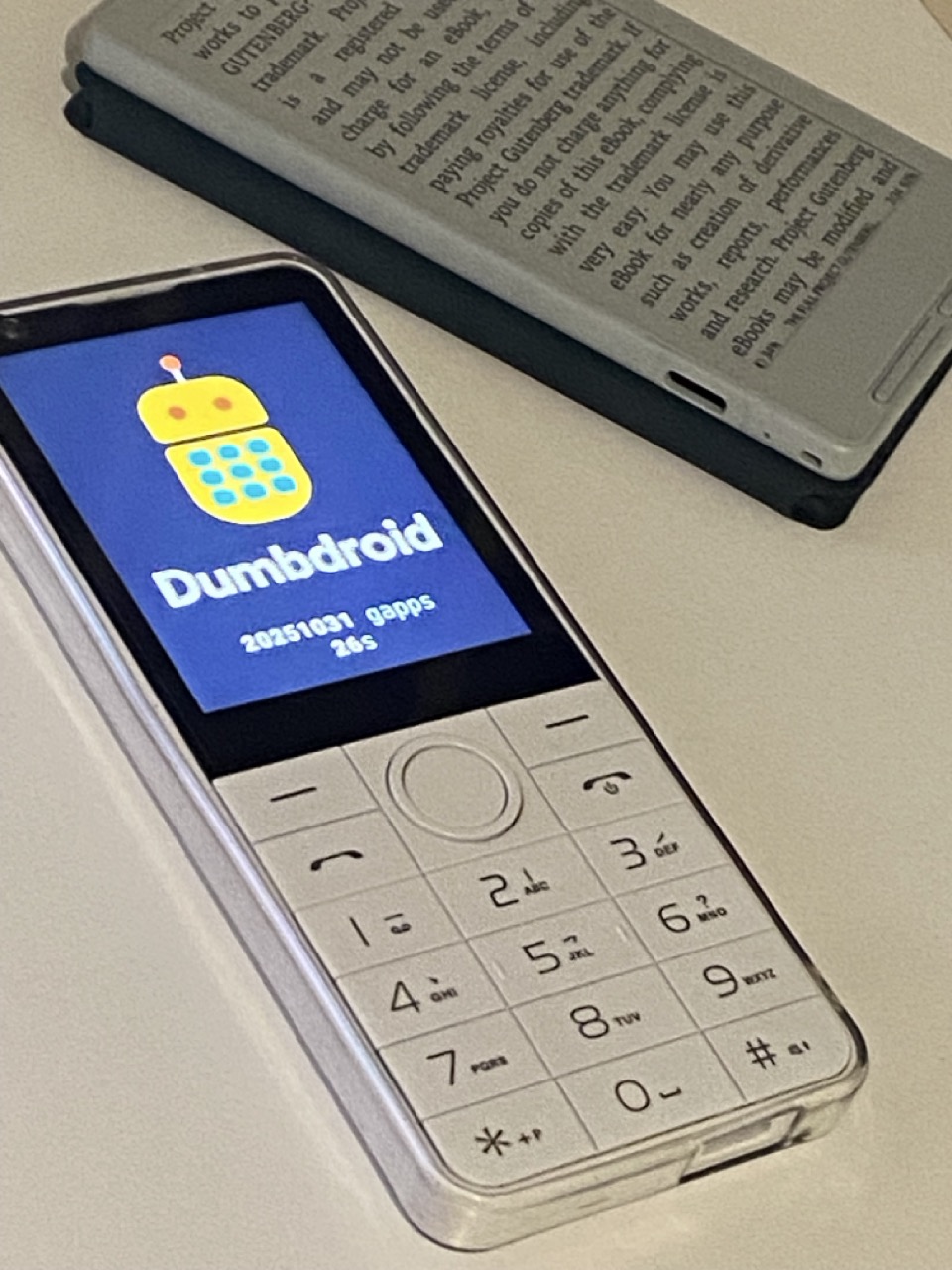
Today I powered on my iPhone for the first time in just under a month. Since the start of the year I've been using my dumbdroid as my full time phone. I've set up the phone pretty much as it comes out of the box, apart from the addition of WhatsApp, and I have disabled the app store and browser. It came with an open source maps application called Organic Maps, which I have been using just fine to get around London. I plan on making a more thorough review, but here are my thoughts for now:
Why?
People find the phone extremely interesting and almost everyone who sees it during a conversation will bring it up. While most people think it's a crazy idea at first, around half of everyone I've spoken to has been very curious and ends up saying they will think about getting one. It's been eye opening to me to see how many people want to improve their 'digital health' and instantly resonate with a desire to get some space from their phone.
In almost every conversation about my phone I am asked "why am I doing it?". My reasons are varied, and I'm finding that 'the point' is revealing itself to me through time, but here are a few reasons:
It's an experiment. Getting a smartphone was an experiment, getting rid of one is another. It's already been interesting to see how life changes when you reshape your digital life. That alone is worth exploring for me.
My iPhone is too powerful. Pocket technology is a wonder, and at times it is indispensable, but at other times it weighs me down. I have that found simply going for a walk with and without my phone feels significantly different. It's hard to explain, but I recommend you try it and see if you agree.
Why not just leave your phone at home then? Phones are essential for some things like navigation and calls/messaging + I do not want to miss urgent calls e.g. in a family emergency.
It has lots of buttons. My measly iPhone only has like 3 buttons. The dumbdroid has like 20! Huge upgrade.
I have negative feelings towards big American tech and the attention economy.
I grew up through the digital revolution of the 2000s, and while I am a digital native, I also remember what life was like before this global transition. Lots of people in my generation miss what we left behind and are curious about whether it's even possible to go back.
The creators of the phone seem like awesome people. It's a tiny European company run by two chaps who quickly replied to my emails when I had a question about the phone.
App controls
The creators of the phone point out that given how small the screen is, and the relatively awkward keyboard, you might not need to put any additional restrictions on the phone to improve your screen time etc. I wanted to go a step further and actually lock the phone down so it's a true brick phone. Currently the only way that seems to be supported is by typing in a pin code, but if you know the pin code then that kind of defeats the point. You could have a friend do it, but instead, I pasted in a sequence of numbers I had not memorised and now the phone requires reinstallation in order to change the app controls.
My current setup:
No browser
WhatsApp installed
No app store
Default maps app
I like that this is super minimalist but if I were to do it again I would consider installing:
Google maps.
Banking (this is the only reason I occasionally use my iPhone now).
ChatGPT. It's quite a good way to get some access to the internet without the full monty. Currently if I really need to know something e.g. opening times of a museum, then I use WhatsApp's AI.
Paying for stuff
I used to almost exclusively use Apple Pay, but have gone back to using bank cards and cash. I have had zero problems with that so far.
Some more thoughts
My right pocket used to be for my iPhone, it's now for my dumbdroid and a tiny ereader called the xteink x4. If I reach for something to pass the time when I'm out and about I now only have the options of contacting friends or reading a book. I really like that choice. I find these devices go very well together.
I have also been experimenting with keeping my laptop in a locker in my office, which means when I go home I have zero internet connected devices. This has introduced some challenges, including an extremely tedious weekend in which I wanted to do some admin but was locked out of the office, leading to unplanned mini digital detox. Overall I find this a really nice way to check out after work and make doom scrolling of any kind impossible. It happens to work well at the moment because I have this separate working space, such that I do not need to do any work at home, and I'm not sure how one could achieve this otherwise.
I will absolutely be keeping my iPhone 11, despite rarely using it. Until I reinstall my dumbdroid and add my banking apps, it's my only way of doing internet banking. I will also certainly use my iPhone in certain situations like managing digital forms at airports, and might even start using it in the office as a 'mini-iPad' but not putting it in my pocket or bringing it away from my desk.
Tips
Even though the phone has a USB-C port, my version of the phone only charges using a USB-A to USB-C cable, so if you have problems charging it try using a cable like that.
Get a screen protector. I have not used a screen protector and the screen has picked up lots of little scratches in my pocket, despite me being pretty careful with it. You can buy custom cut-to-size screen protectors that should do the trick.
To lock down the phone without relying on a friend to type in the PIN code: type a sequence of numbers into e.g. the browser or settings search bar without memorising them, copy the sequence to the clipboard, and then paste that into the PIN code settings in order to lock down the phone.
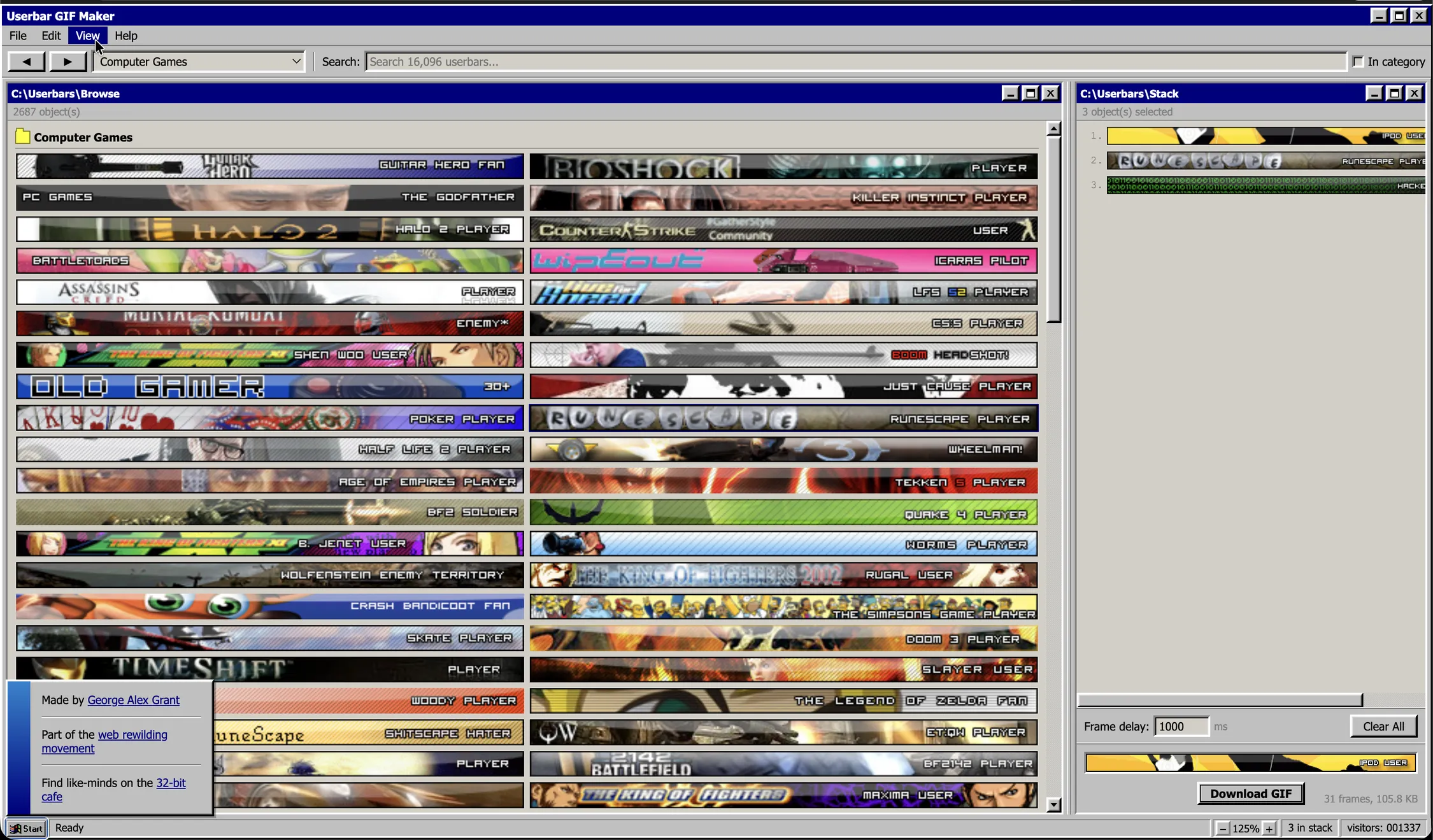
You can find authentic vintage gifs like this by browsing archives of geocities (which was shut down in 2009), or the awesome reboot project: neocities.org.
There is also gifcities.org, a purpose built search engine for archived geocities gifs run by the Internet Archive. It's great!
There are a bunch of websites that offer YouTube channel to RSS conversion but require a login. RSS links used to be very visible on YouTube. That's since changed, but the links still exist.
I vibe coded a tiny API to convert YouTube channel links to RSS links, which you can interact with using the HTML form below.
Enter a YouTube channel URL in the box above e.g. https://www.youtube.com/@PewDiePie
I've also used it successfully on sites other than YouTube, as it just looks for an RSS link in the page HTML. It seems that a lot of websites have RSS feeds, but don't advertise them. I wouldn't be surprised if lots a lot of website maintainers have harmlessly forgotten that they are still publishing to these feeds, which are quietly being generated by the back end.
I've recently gone down a rabbit hole of what I'm calling retro digital
pragmatism, inspired by jvsholz, it's a superposition of digital minimalism and
digital maximalism which aims to develop a positive intentional relationship
with technology through customisation, single-use devices, and DIY solutions.
I'm intending on documenting this journey on this blog.
As part of this experiment I'm currently waiting for the following in the post:
a dumbdroid.eu to replace my iPhone 11 as my pocket
phone.
I will still keep my iPhone for iOS development and basically as a mini-iPad,
but I want to decouple what I need (WhatsApp and Maps), from possible sources of
distraction (browser, YT, etc.). Certain features of the iPhone are really
useful like having ChatGPT with me in seminars in order to quickly refresh
assumed concepts, and I plan to use the device for specific things like this,
with intention.
I heard about this bad boy from
jvsholz and was very surprised
at how capable these tiny ereaders are for the price, but what made me order
one was the really active community surrounding the device. Already multiple
people have developed custom firmware for the device, extending the already
good enough feature set to be quite insane. My intention is to carry this on me
so I have a productive way to kill time on the tube, or when collapsed on the
sofa. I intend to put some silly fiction on it, as I typically read non-fiction
but I want this to be a fun relaxing thing that I will do instead of reaching
for something else.
Ok I definitely did not need to order this, but hear me out. Not only are these
single-use audio players still good at what they were designed for, custom mods
extend the storage capacity and battery life to ridiculous levels, and a custom
firmware makes the iPod fully customisable. I intend to use this thing to
listen to music, and I've already cancelled my Spotify subscription. I get a
lot from my Spotify subscription, and it's quite crazy to think about the
lengths my parents' generation went to in order to get the music they wanted,
compared with the ease with which I can access almost any song I want. My
biggest problems with Spotify are the following:
My music and my phone are coupled, I can't take a walk and listen to tunes
without being a tap away from everything else.
Music has become low value and I never know what I'm listening to. I don't
pay attention to albums, or often even artist names because of the
frictionless experience and my dependence on the recommender system to bring
me new music.
More often I find new music by recommendations external to Spotify e.g. from
friends or elsewhere online.
And of course classic iPods are cool! They are really nice devices, from a time
before planned obsolescence. I've seen some crazy
mods
that push these things to new heights, and give you a fun project to work on
and learn from. Jakob Burrows has a great essay on why people are buying iPods
again, and
he points out that people tend to assign much more value to things they have
put physical effort into. He gives the example of people valuing their flat
pack iKea furniture more if they assembled it themselves, and apparently
brownie kits ask you to add a fresh egg instead of containing powdered egg,
even though they could, for the same reason: if you on something you value it more.
I think this comes back to this idea of intention. It doesn't have to be
about doing less or having less, and I don't think that buying more off the
shelfcorporate
tech is the solution. I think developing
intention, and taking ownership of my devices is the way to go. I also think
nostalgia is a powerful emotion and it can be harnessed to bring a simpler time
to the present day.
But let's see how it goes! Thanks for dropping by.